Getting Started with Postrillo: Your First Account, Draft and Post
Learn the Postrillo workflow from connecting a social account to saving a draft, choosing a schedule and checking publication.
Postrillo how-to series · Guide 1 of 24
Your first goal in Postrillo is one useful post on one account you manage. Learn that small workflow before building a full calendar. This guide gives you a route through the dashboard without requiring you to generate content with AI.
Before you start
Finish email verification, have access to a supported social account, and prepare one customer question you can answer. Check current plan details for available channels and publishing allowances. A social-network login and a Postrillo login are separate accounts.
1. Connect one destination
From the dashboard, use Connect a social account in the first-post checklist, or open Channels and choose Add channels. Select a supported account type and complete the social network’s authorization. Read the destination name when you return; your personal login and business Page may have different names.
2. Make a small draft
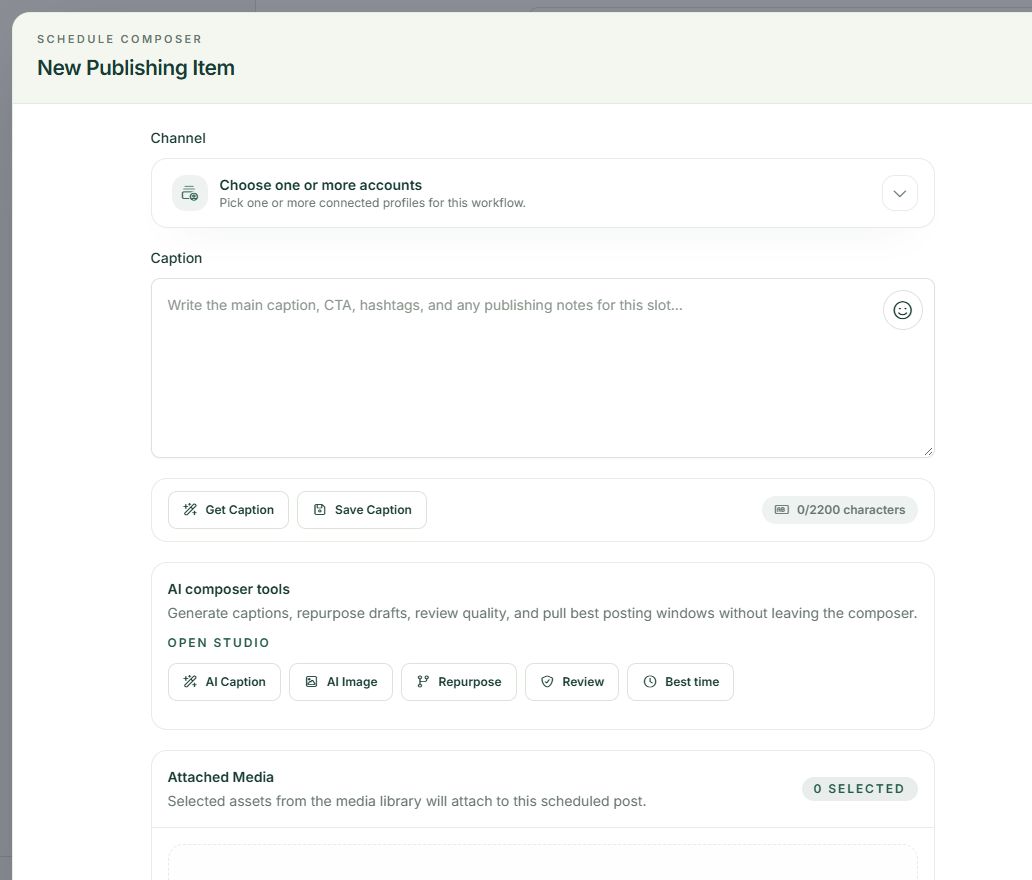
Return to the dashboard and choose Create your first draft. Select your connected destination under Channel and write an answer in Caption. Choose Save Draft. A saved caption in the caption library is different from a draft publishing item; confirm the actual post appears in your workspace.
3. Review before scheduling
Use Review and schedule your draft. Check the account, caption and any media, then choose Specific Days & Times and a deliberate future date. Read the full date and AM/PM value. Leave Does not repeat selected for a one-time post.
4. Confirm the result
After choosing Schedule Post, check the calendar or Queue. After its due time, look for Published and open the returned public post link when available. The first-post checklist disappears after a post is queued or published; that alone does not prove delivery.
A practical example
For a fictional repair shop, the first caption might explain what customers should bring to an appointment. One clear answer is enough to test the workflow. You can add a wider campaign after you have confirmed that first destination and post.
If something does not look right
If a destination is missing, stop at Channels and check connection, plan and workspace access. If saving leaves an error in the composer, correct it before submitting again. If a due post has no final result yet, inspect its status before creating a duplicate.
What to check before moving on
You have completed the workflow when the intended account has a matching public post, rather than merely a saved calendar entry.
Try the workflow: Create your free Postrillo account. Already signed in? Open your dashboard. Check current plan details for available tools and allowances.