How to Connect a Facebook Page to Postrillo
Connect a Facebook Page in Postrillo, confirm the right destination and check that the connection is enabled before drafting.
Postrillo how-to series · Guide 2 of 24
Connecting a Facebook Page gives Postrillo an authorized destination for publishing. Start by checking which Page you intend to use. The Facebook account that grants access is not necessarily the name that should appear on your finished business post.
Before you start
You need a Postrillo workspace with channel access and a Facebook account authorized to manage the intended Page. Available account types and capacity depend on your plan. Have the Page name handy so you can distinguish similarly named Pages.
1. Open the channel chooser
Go to Channels and choose Add channels. Find Facebook and select its Page connection option. Use the options actually marked ready in your workspace. If the choice is disabled or shown under Setup required, contact Postrillo rather than repeatedly trying authorization.
2. Complete Facebook authorization
Continue in Facebook’s own authorization screen. Review the identity, requested access and Page choices there, and grant only the access you intend. Handle login and security prompts yourself. Never send a social account password or authorization token to support in a message.
3. Confirm the returned Page
After returning to Postrillo, read the success message and the connected account card. Check the full Page name, Facebook Page account type and Enabled state. The channel summary should reflect the connection; a browser redirect without a saved account is not sufficient.
4. Test with a draft first
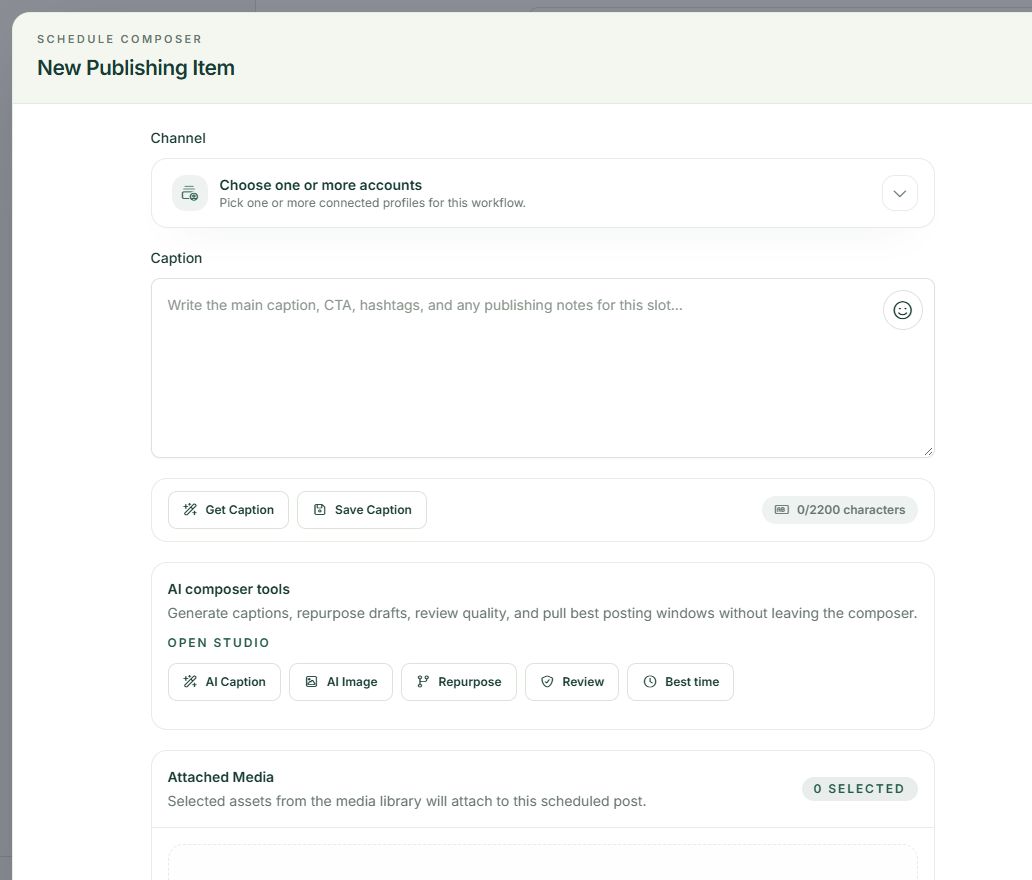
Return to the dashboard, open a new publishing item and select that Page under Channel. Write a short, useful caption and choose Save Draft. Review the destination before scheduling anything public, especially if you manage several client or business Pages.
A practical example
If you manage both a shop Page and a separate consulting Page, choose one for this first test. Compare the name on the connected card with the Page you can open on Facebook. This is a practical identity check, not a test of follower growth.
If something does not look right
If the Page does not appear, check that the Facebook account used for authorization has the necessary access and that the Page was included in the consent flow. Also check channel capacity and the current workspace. A connected Page can still need renewed authorization later.
What to check before moving on
The Page should appear as enabled in Channels and be selectable in the publishing composer. Actual publication is a separate check after scheduling.
Continue learning: start with the Postrillo getting-started guide.
Try the workflow: Create your free Postrillo account. Already signed in? Open your dashboard. Check current plan details for available tools and allowances.