How to Change a Scheduled Post’s Time in Postrillo
Reopen an editable scheduled Postrillo item, adjust its date and time, and confirm the updated entry without duplicating it.
Postrillo how-to series · Guide 15 of 24
A changed business date does not require a second copy of an announcement. When the existing item is still editable, update its schedule and verify the result. First inspect its status: an already published post needs a different decision from a future scheduled item.
Before you start
Find the intended item and note its current destination and time. Make sure you have permission to edit it and that it has not already been delivered. Avoid changing a post at its exact dispatch moment, when its state may be moving between queued and processing.
1. Find the existing calendar item
Open Publishing and locate the post by its caption and account. Use its available edit action when supported for that state. Do not open New Post merely to adjust a time; that creates the conditions for a duplicate announcement.
2. Review the whole announcement
Check whether changing the date also requires a new caption, link or poster image. A rescheduled event can have timing details in several places. Keep those details consistent before choosing a replacement publication slot.
3. Choose the new future time
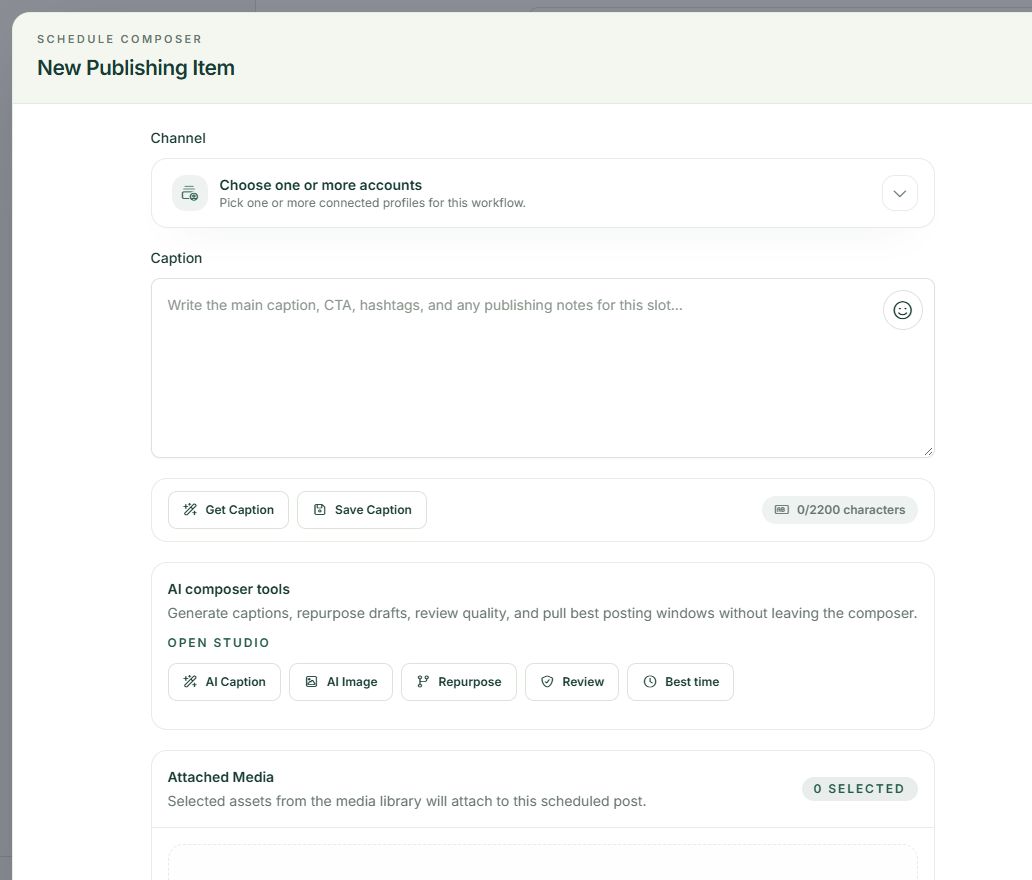
In the composer, use Specific Days & Times and set the intended future slot. Read the full date, hour and AM/PM value. Keep the repeat setting intentional. Save the scheduling change using the action presented for the editable item.
4. Verify the replacement state
Return to the calendar or Queue and confirm the same item now appears at the new intended time. Check that you did not leave a second active copy at the previous time. After the new due time, review delivery as you would for any other scheduled post.
A practical example
A fictional workshop moved from Tuesday to Thursday needs both the caption date and the publication time reviewed. Updating only the calendar slot could still send an announcement with Tuesday written in the public text.
If something does not look right
If an edit is refused because the post can no longer be edited, inspect its current status and the public profile before trying again. Do not assume that changing a local record removes an existing public post. If timing is unclear, record the item and current status for support.
What to check before moving on
Success is one intended item with a confirmed new time and consistent content, rather than two competing schedules.
Continue learning: start with the Postrillo getting-started guide or read How to Check Dates and Time Zones Before Scheduling in Postrillo.
Try the workflow: Create your free Postrillo account. Already signed in? Open your dashboard. Check current plan details for available tools and allowances.