How to Check Dates and Time Zones Before Scheduling in Postrillo
Avoid AM/PM, date and time-zone mistakes when choosing a future social publication in Postrillo.
Postrillo how-to series · Guide 14 of 24
A post can be scheduled successfully for the wrong time. The usual safeguards are simple: read the full date, check AM or PM, and compare the workspace’s displayed clock with the business time you intended. Do this before pressing the final scheduling button.
Before you start
Decide which local time matters to your audience. If you work while traveling or manage a client in another region, write down the intended time and location first. Do not assume a browser clock, an account setting and the client’s local time are identical.
1. Choose an unambiguous target
Write the date and local time in full, such as a weekday morning in your business location. For a future date near a daylight-saving change, confirm the conversion for that actual date. A fixed offset copied from last month can be wrong.
2. Inspect the composer slot
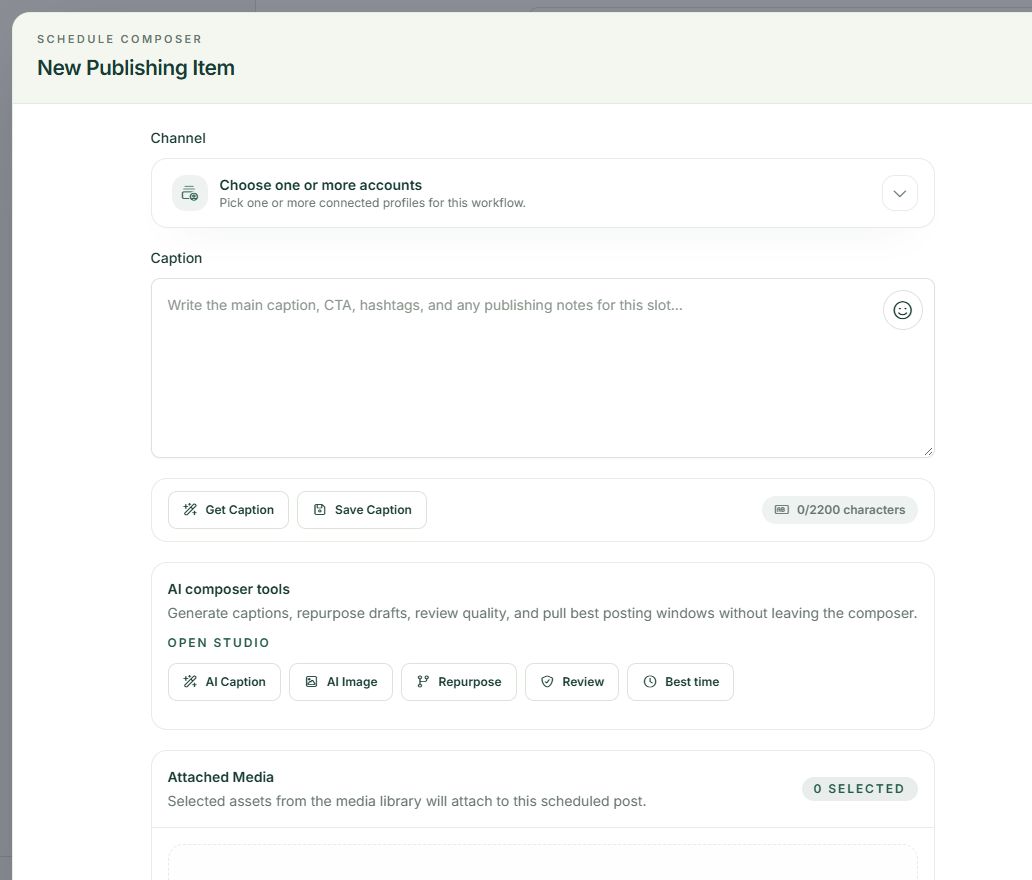
Open the item, choose Specific Days & Times and read the complete schedule slot. Check month, day, year, hour and AM/PM. Midnight and noon are easy to confuse. Do not treat the presence of a value as evidence you selected it intentionally.
3. Compare the workspace context
Postrillo’s publishing workflow uses account time-zone context when preparing and interpreting slots. If the displayed time does not match what you expect, confirm your account’s time zone or ask support before saving. Avoid guessing a correction by moving the hour repeatedly.
4. Check the saved record
After Schedule Post, compare the calendar or Queue entry with the target you wrote down. If it differs, resolve it before the publication window. When managing multiple destinations or a team, make sure everyone is discussing the same local date and time.
A practical example
Illustrative Central-time example: November 1, 2026 changes from daylight to standard time. A morning publication after that transition has a different UTC offset from an October morning. Use America/Chicago date-aware conversion when planning across that boundary.
If something does not look right
If an item appears overdue immediately, check whether the saved time is already in the past, whether AM/PM was reversed and whether a time-zone assumption was wrong. Inspect the current record before creating a replacement. An empty queue alone does not identify the cause.
What to check before moving on
The final check is agreement between your intended local time and the saved publication entry, followed by a delivery check after that time.
Continue learning: start with the Postrillo getting-started guide or read How to Schedule One Post for a Future Time in Postrillo.
Try the workflow: Create your free Postrillo account. Already signed in? Open your dashboard. Check current plan details for available tools and allowances.