How to Schedule One Post for a Future Time in Postrillo
Choose Specific Days & Times in Postrillo, save a future publication and verify the resulting calendar or queue entry.
Postrillo how-to series · Guide 13 of 24
Scheduling means choosing when a prepared post should be sent. It is different from saving a draft or publishing immediately. For a first test, use a single destination and a one-time future slot so the result is easy to confirm.
Before you start
Connect a supported account, prepare the caption and media, and verify the workspace clock against your intended business time. Review current publishing allowance and any team approval requirement. Decide on the date before opening the scheduling controls.
1. Open and review the item
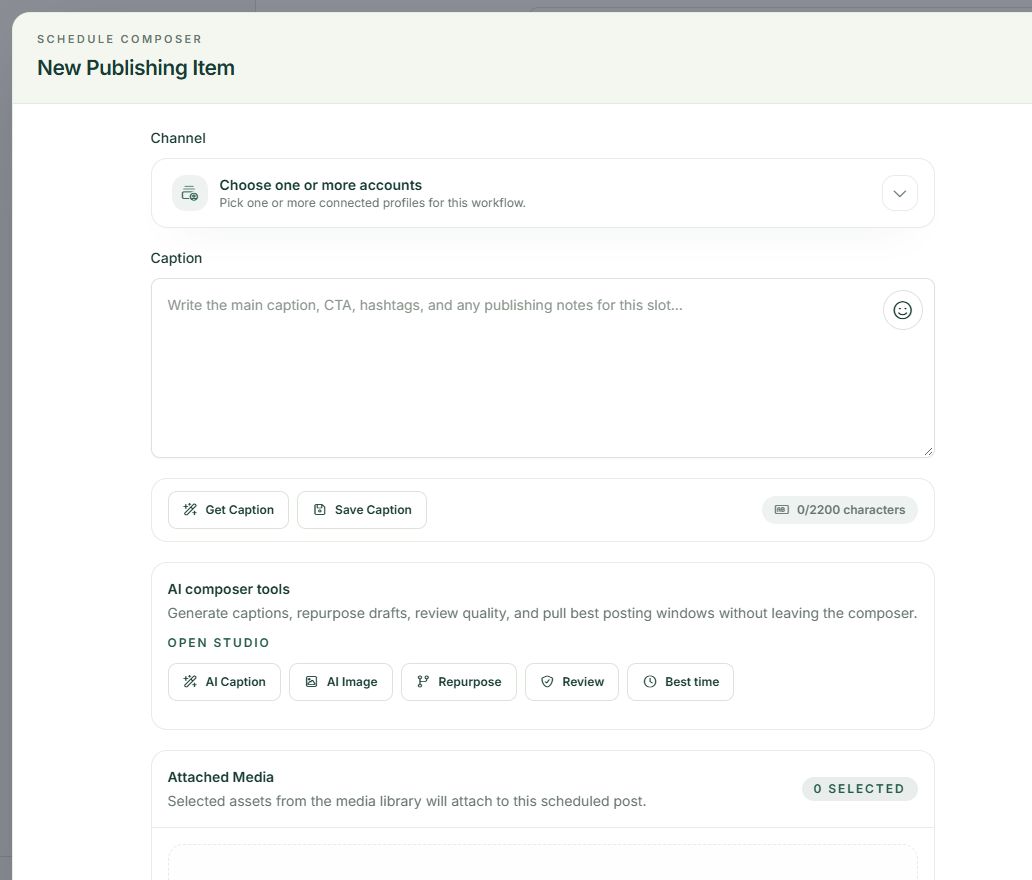
Create a publishing item or reopen the intended draft. Confirm Channel, Caption and media. Check the actual account name even when you opened the draft from a familiar dashboard link. A prepared message is not ready to publish until its destination is right.
2. Select the future mode
Under When to post, choose Specific Days & Times. Review the schedule slot and enter the full intended date and time. The normal composer can default to Immediately, while guided first-post entry uses a future mode. Always read the current value.
3. Keep the first schedule simple
Leave Does not repeat selected for a one-time post. Check AM/PM, the day and the displayed time before choosing Schedule Post. If you need a repeating series, understand those controls separately; do not enable repetition merely to fill a calendar.
4. Confirm acceptance and delivery
After saving, inspect the publishing calendar or Queue for the correct entry. Check the destination and status rather than assuming a closed composer proves success. After the due time, look for Published or a failure requiring attention and inspect the public post when a link is available.
A practical example
For a fictional shop announcement, choose a daytime slot on the intended business day rather than accepting an unchanged midnight default. Use a real future time you have checked. An arbitrary default can make a technically saved schedule wrong for the audience.
If something does not look right
If a validation error remains, correct it before resubmitting. If the item is marked overdue, refresh and inspect its current outcome before making another copy. A brief processing transition is different from a persistent delivery failure, and neither should be guessed from the calendar alone.
What to check before moving on
Success requires a saved future entry at the intended time; successful delivery is a later, separate confirmation.
Continue learning: start with the Postrillo getting-started guide or read How to Prepare a Post for More Than One Channel in Postrillo.
Try the workflow: Create your free Postrillo account. Already signed in? Open your dashboard. Check current plan details for available tools and allowances.