How to Review a Post Preview Before Scheduling in Postrillo
Use Postrillo’s network preview to review account identity, caption and media before a post enters your schedule.
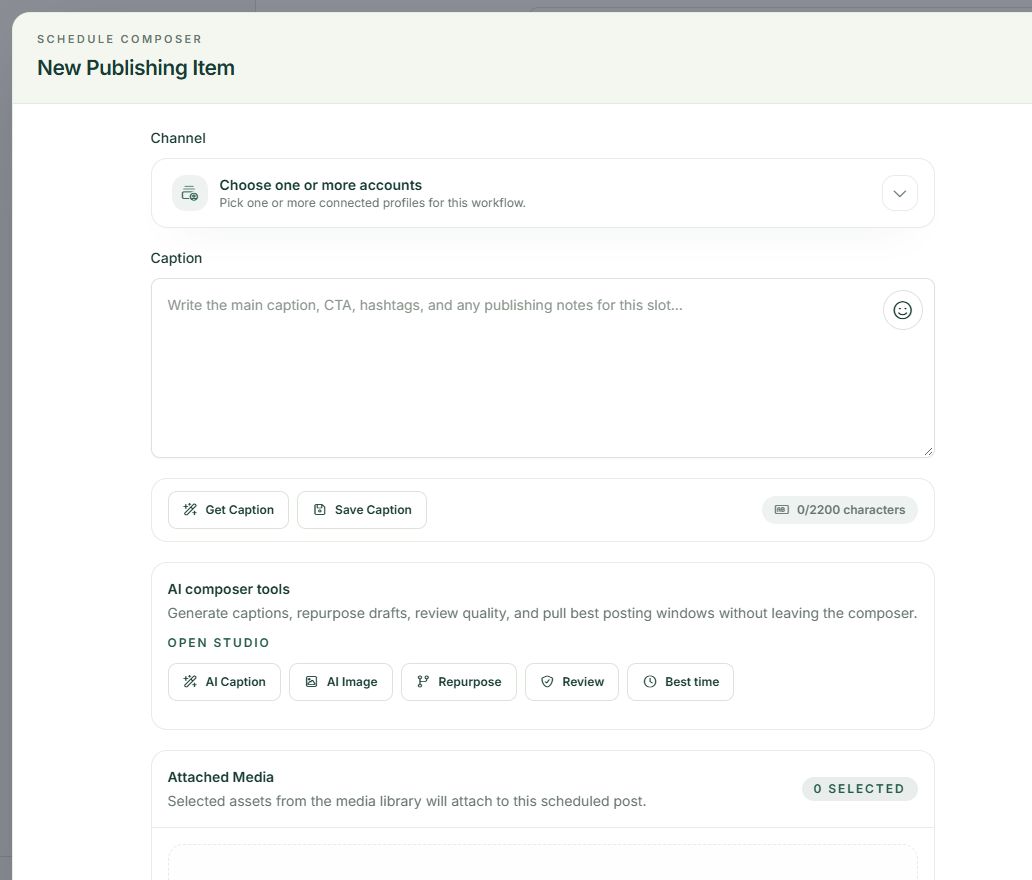
Postrillo how-to series · Guide 11 of 24
The preview is your last chance to read a post as a reader rather than as its author. Use it to catch mismatched media, awkward text and the wrong destination. Keep factual review separate: an attractive preview can still contain an incorrect price or an outdated link.
Before you start
Prepare a caption and select a connected destination in the publishing composer. Attach media if needed. In a narrow layout, use Show preview when that control is offered. A preview needs enough post details to display useful content.
1. Read the destination name
Confirm the Page or profile represented by the preview. Do not rely on the network icon alone. If you selected several accounts, inspect each relevant destination because a post can be suitable for one business profile and wrong for another.
2. Read the opening and next step
Check that the first sentence communicates the point clearly. Read the call to action and any link as if you had no background information. Remove instructions meant for teammates, placeholder text and claims you cannot support.
3. Inspect the media relationship
Look for important details cut off by framing, small text that becomes unreadable and images that do not match the caption. If a poster includes a date or offer, compare it with the text. Correct the source asset when a crop alone cannot fix the issue.
4. Review scheduling separately
After the creative looks right, check Specific Days & Times, the full date, the time and the selected destination again. Then save the intended state. A preview does not confirm a queue entry, and a queue entry does not confirm successful public delivery.
A practical example
If a fictional bakery caption says “Saturday collection” while the image says Friday, the preview should prompt you to stop and reconcile the two. The problem is the message, even though both the text and image might pass technical validation.
If something does not look right
If a preview is blank, check that you selected a destination and entered content. If a live social post later looks different, compare the actual platform rendering and supported format. Treat the preview as guidance rather than a promise of pixel-for-pixel appearance on every device.
What to check before moving on
You should be able to explain what readers will see, which account will publish it and what action you want them to take.
Continue learning: start with the Postrillo getting-started guide or read How to Add and Check Media in the Postrillo Composer.
Try the workflow: Create your free Postrillo account. Already signed in? Open your dashboard. Check current plan details for available tools and allowances.