How to Add and Check Media in the Postrillo Composer
Attach media to a Postrillo publishing item and review how it fits the selected network and post format.
Postrillo how-to series · Guide 10 of 24
A file in your library is not automatically the right attachment for a post. The important checks are whether it matches the caption, whether you can use it and whether the selected destination accepts that format. Review those together before scheduling.
Before you start
Prepare an original or properly licensed asset. Remove private customer information and obtain permission for identifiable people when needed. Have the intended caption and destination ready so you can judge the media in context rather than as an isolated file.
1. Choose the destination first
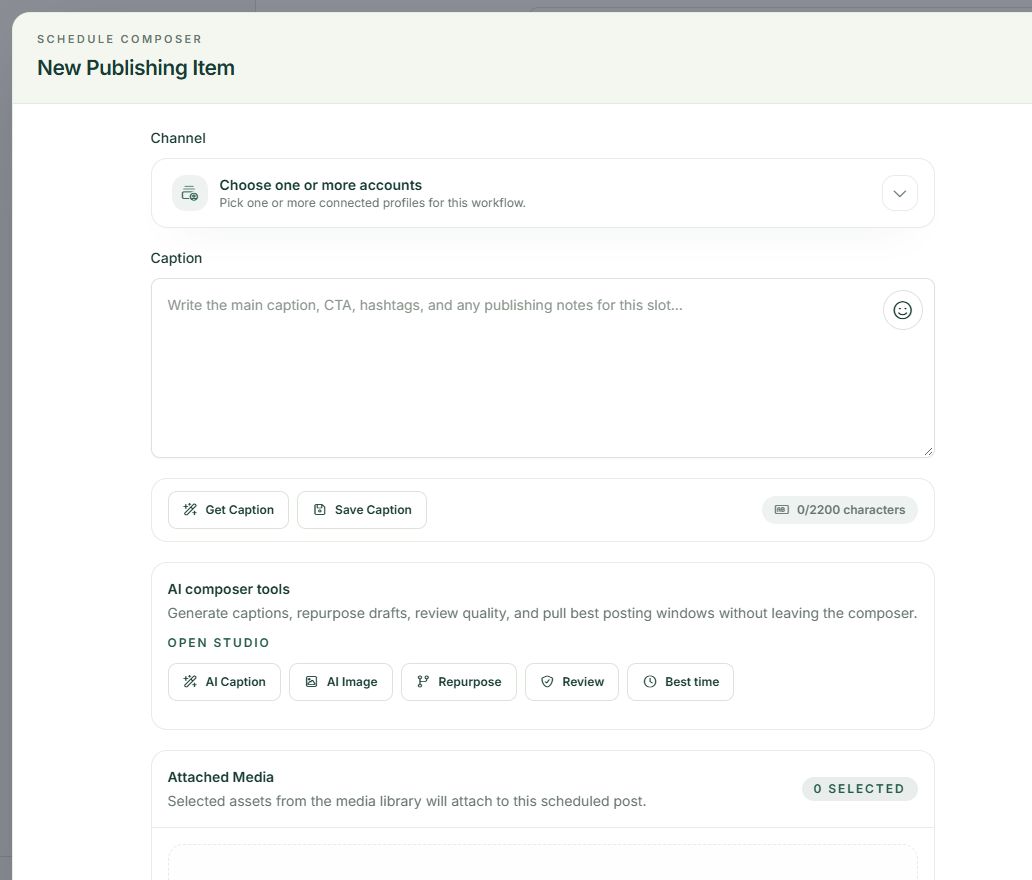
Open the publishing composer and select the intended account under Channel. Network-specific choices can change with the selected destination. For example, the Facebook composer offers Feed, Reels and Stories options. Do not assume one media format suits every placement.
2. Use Attached Media
In Attached Media, choose Select media where available or use the presented drag-and-drop area. Select the intended file from the media workflow. Wait for the selection to finish, then check that the expected asset is attached rather than relying only on the action you attempted.
3. Review content and format
Inspect the network preview and the selected format. Check crop, orientation, legible details and whether the image matches the caption. Important information should survive the preview; an attractive full-size image can still lose context when displayed in a different shape.
4. Respond to validation
Read any media or destination validation message before saving. Adjust the file or format deliberately and review again. Save Draft when further work is needed. After scheduling, check that the saved item still shows the attachment you intended to use.
A practical example
For a fictional home-organizing business, an original photograph of a labeled shelf can support a short sorting tip. Keep the main message in the caption and use minimal overlay text. Do not present a stock photograph as proof of work you completed for a client.
If something does not look right
If a file appears in the library but fails in the composer, compare the chosen destination and post format with its current requirements. Do not repeatedly upload identical copies to solve a format problem. File-size, duration and media rules can change, so follow current product validation and platform guidance.
What to check before moving on
Success is a saved post with the correct asset and no unresolved media warning. A preview is a review aid, not a guarantee of platform acceptance.
Continue learning: start with the Postrillo getting-started guide or read How to Reopen and Finish a Draft in Postrillo.
Try the workflow: Create your free Postrillo account. Already signed in? Open your dashboard. Check current plan details for available tools and allowances.