How to Reopen and Finish a Draft in Postrillo
Find a saved Postrillo draft, revise its caption and media, and decide whether to keep it as a draft or schedule it.
Postrillo how-to series · Guide 9 of 24
A saved draft is a starting point you can improve. Reopen the existing item rather than creating a new post every time you change your mind. That keeps the destination, content and review decisions together and reduces accidental duplicates.
Before you start
Confirm the workspace where the draft was created. Have any updated details ready, especially dates, links and prices. Your role must allow the relevant publishing work. A draft owned by another workspace may not be visible or editable.
1. Find the existing item
Use Review and schedule your draft in the first-post checklist when available. Otherwise open the publishing Drafts view through the workspace publishing navigation. Find the item by its caption and destination, not just by the first few words if several drafts are similar.
2. Read the saved destination
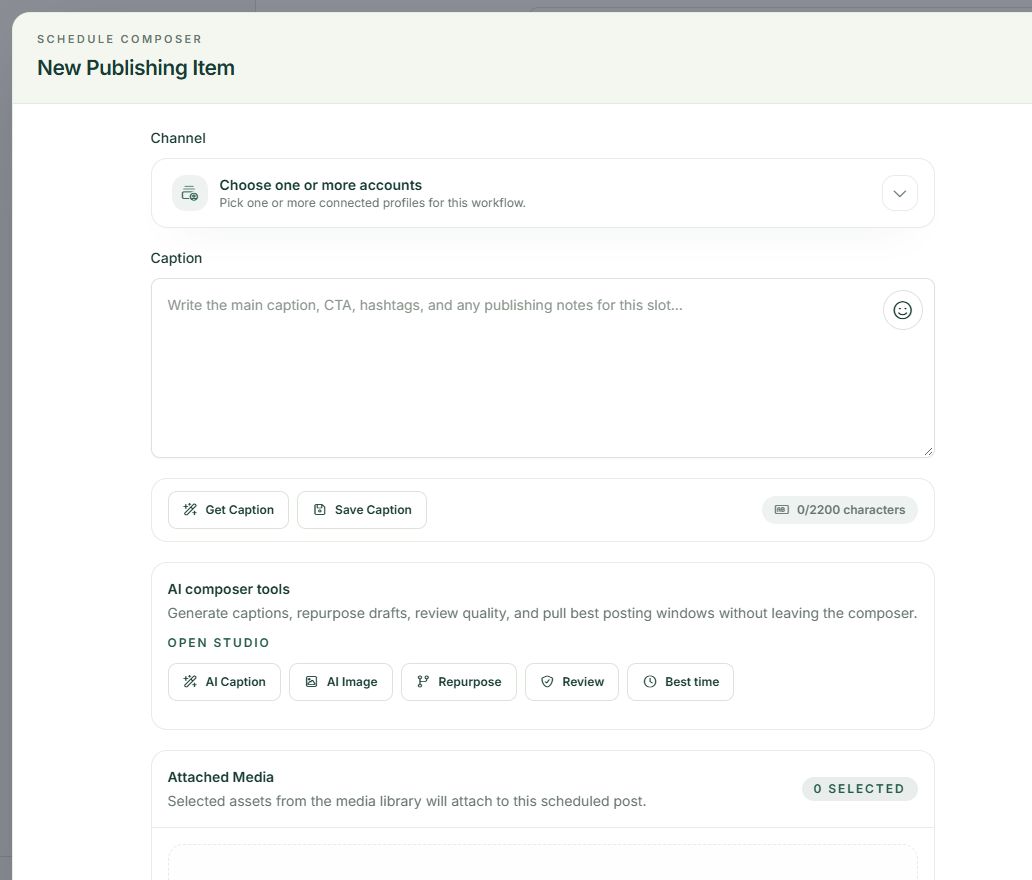
Open the draft and check Channel before changing the caption. Verify that the account is still connected and available. If you manage client Pages, read the full name. Rewriting the text does not change whether the selected destination is appropriate.
3. Update content together
Revise the caption, media and any related network options as one package. Check a destination link if the offer has changed. Remove internal placeholders or instructions that belong in notes. Review the network preview after changing media so the caption still describes what readers will see.
4. Save the intended state
Choose Save Draft to keep preparing. To commit to a future publication, deliberately select Specific Days & Times, review the date and choose Schedule Post. Confirm the resulting state in the dashboard, calendar or Queue instead of assuming any save action has the same effect.
A practical example
A draft written for a workshop can be revisited when the organizer confirms the date. Update both the caption and any poster image containing the old date. Changing only one creates a confusing post even if the software accepts it.
If something does not look right
If the item is no longer editable, inspect whether it was already published or its status changed. Do not assume a queued or failed record behaves exactly like a fresh draft. If an edit fails, keep the error wording and check access before making a duplicate.
What to check before moving on
Finish with one identifiable item in the state you intended, with matching caption, media, destination and timing.
Continue learning: start with the Postrillo getting-started guide or read How to Save Your First Draft in Postrillo.
Try the workflow: Create your free Postrillo account. Already signed in? Open your dashboard. Check current plan details for available tools and allowances.