How to Save Your First Draft in Postrillo
Save a Postrillo publishing draft with a selected channel, caption and optional media, then confirm it on your dashboard.
Postrillo how-to series · Guide 8 of 24
A draft gives you a safe place to prepare a post before committing to public publication. Postrillo’s Save Draft action saves a publishing item. It is different from generating text, saving a reusable caption or scheduling a future post.
Before you start
Connect an eligible account first. The publishing composer requires at least one channel even when you are saving a draft. Confirm the workspace and prepare a small piece of content, such as an answer to a customer question.
1. Use the guided entry if offered
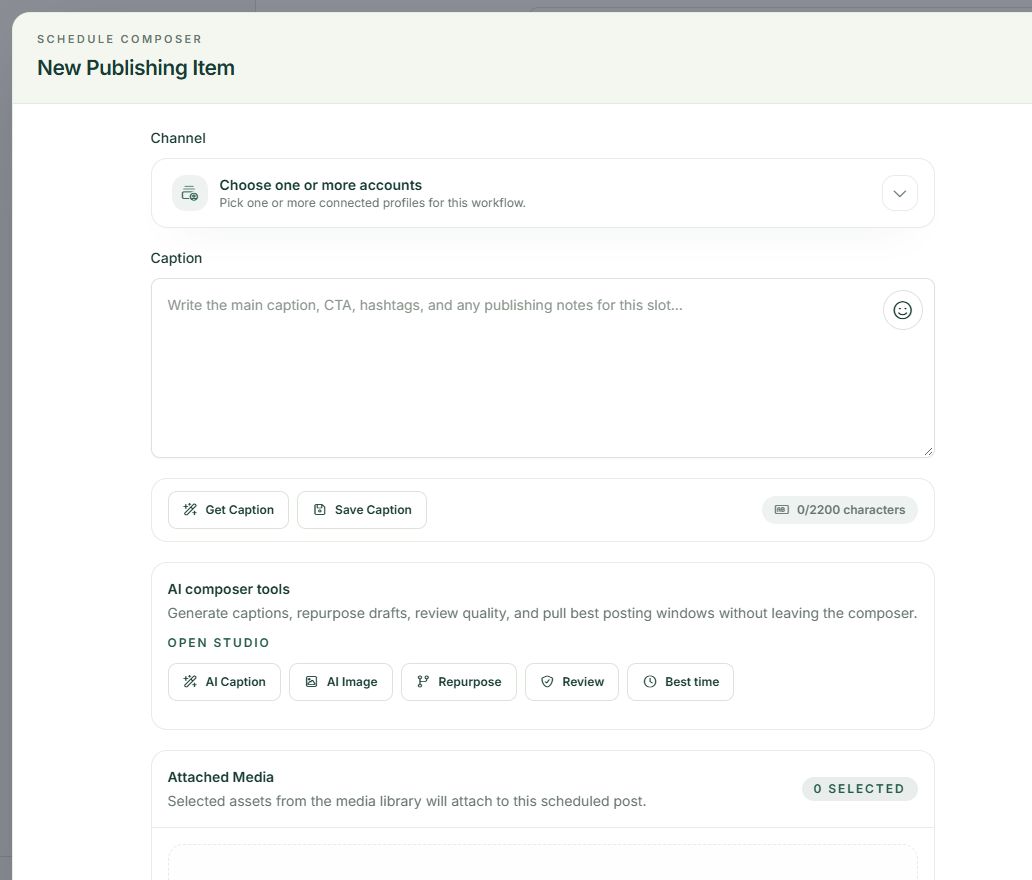
On a new account, choose Create your first draft from the dashboard checklist. You can also open Publishing and choose New Post. Read the composer’s current mode rather than assuming the main button always saves a draft; Publish Now and Schedule Post have different consequences.
2. Select a channel deliberately
Open Channel and choose the actual profile or Page name. For your first attempt, use one account. This makes it easier to spot a wrong destination and to understand validation messages. A connected but paused or inaccessible account may not be available here.
3. Prepare a reviewable version
Enter the caption and attach suitable media if your destination and post format require it. Leave internal reminders in Internal notes rather than mixing them into the public caption. Do not upload material you are not allowed to publish.
4. Choose Save Draft and confirm
Select Save Draft, wait for the response and check for validation errors. In the guided workflow, a successful save returns to the dashboard with a draft message. Confirm that the draft appears and that the next checklist action is Review and schedule your draft.
A practical example
A fictional café can save a draft explaining how customers can identify that week’s menu. The owner can review dates and the destination before choosing a public schedule. The draft should contain real details before anyone approves it for publication.
If something does not look right
If the composer asks for a channel, select an available destination rather than repeatedly clicking Save Draft. If you do not see the item afterward, check Drafts and the current team before creating a second copy. Saving a draft does not send the post to Facebook or another network.
What to check before moving on
Success means a saved Draft record with the correct account and content. A future schedule and a published post are later steps.
Continue learning: start with the Postrillo getting-started guide or read How to Write a Useful Social Caption in Postrillo.
Try the workflow: Create your free Postrillo account. Already signed in? Open your dashboard. Check current plan details for available tools and allowances.