How to Troubleshoot a Missing or Disconnected Channel in Postrillo
Check workspace, account status, permissions and reconnect options when a social channel is missing in Postrillo.
Postrillo how-to series · Guide 4 of 24
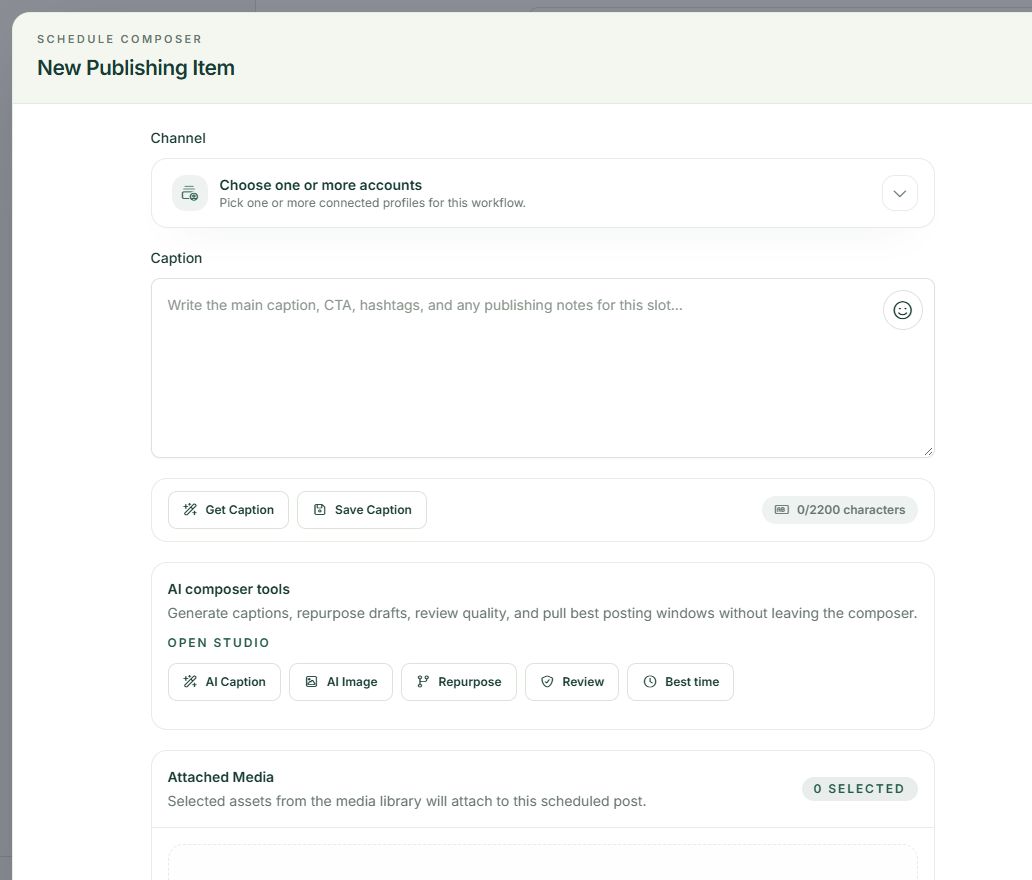
When an account is missing from the composer, diagnose the connection before rewriting the post. A destination can be connected in another workspace, paused, outside the current plan or waiting for renewed social-network authorization. Those situations require different fixes.
Before you start
Note the exact network, account name and workspace where you expected to see it. Keep an unfinished caption somewhere safe before navigating away. Do not remove an account as your first troubleshooting step; existing drafts and schedules may refer to it.
1. Confirm workspace and filters
Check the team selector and open Channels. Clear search or network filters that could be hiding the account. Compare the account card’s name and type with the intended destination. Finding a similarly named account is not proof you found the correct one.
2. Inspect connection state
Read whether the account is Enabled or paused. Review the account’s actions for the options your role is allowed to use. A paused account is not a publishing-ready destination. If you cannot manage the connection, ask the workspace owner rather than changing unrelated account settings.
3. Use reconnect when available
If renewed authorization is needed, use the account’s reconnect action when offered. Complete the network’s own login and consent prompts, then return and confirm the saved destination. Some connections do not have a configured reconnect flow; report that message to support instead of inventing a URL.
4. Return to the existing post
Reopen the original draft or schedule and check whether its channel is available. Review the caption, destination and status again. If a previous attempt may already have published, inspect the social profile before retrying so you do not send a duplicate announcement.
A practical example
Suppose a teammate can see a Page but you cannot. That points you toward workspace membership and managed-account access, not necessarily a broken Facebook login. Ask the owner to compare the account access available to your role.
If something does not look right
If reconnecting returns to the same error, record its wording and when it happened, plus the network and account type. Share a screenshot with private details hidden. Keep passwords, tokens and verification links out of support messages. Do not repeatedly toggle settings without knowing what changed.
What to check before moving on
The account should be enabled, visible in the correct workspace and selectable for a new draft. Confirm delivery separately after any scheduled retry.
Continue learning: start with the Postrillo getting-started guide or read How to Find the Social Channels Available in Your Postrillo Plan.
Try the workflow: Create your free Postrillo account. Already signed in? Open your dashboard. Check current plan details for available tools and allowances.